听译
Listening Desk
Every foreign-language moment, more at ease
Close by, and out of the way. It hears, it answers, and it leaves the screen you are using alone.
Bottom · live interpretation
English source on the first line, Chinese translation on the second, word by word. Clicks pass through until you hover, then drag and fold appear.
Top right · suggested answer
Opens only when someone asks a question. First what it tests, then Chinese points, then English you can say aloud.
Middle · left for the slides
Captions and answers are separate always-on-top windows that never take keyboard focus. Keep listening and keep clicking through slides.
From hearing to answering, in four steps
The settings window can hide while listening continues. Plain statements are translated and nothing else appears.
01
Start listening
Pick a scene and a microphone, then press start. Tingyi keeps listening in the background.
02
Live interpretation
English speech becomes Chinese captions at the bottom of the screen, sentence by sentence.
03
Question detection
Statements are only translated. When a question is asked, Tingyi recognises it as one to answer.
04
Suggested answer
A card opens at the top right with what it tests, Chinese points, and an English reply. A new question replaces the old suggestion.
Three rooms
An English interview, a meeting across languages, a lecture given in English. The hard part is often the language, not the ability.
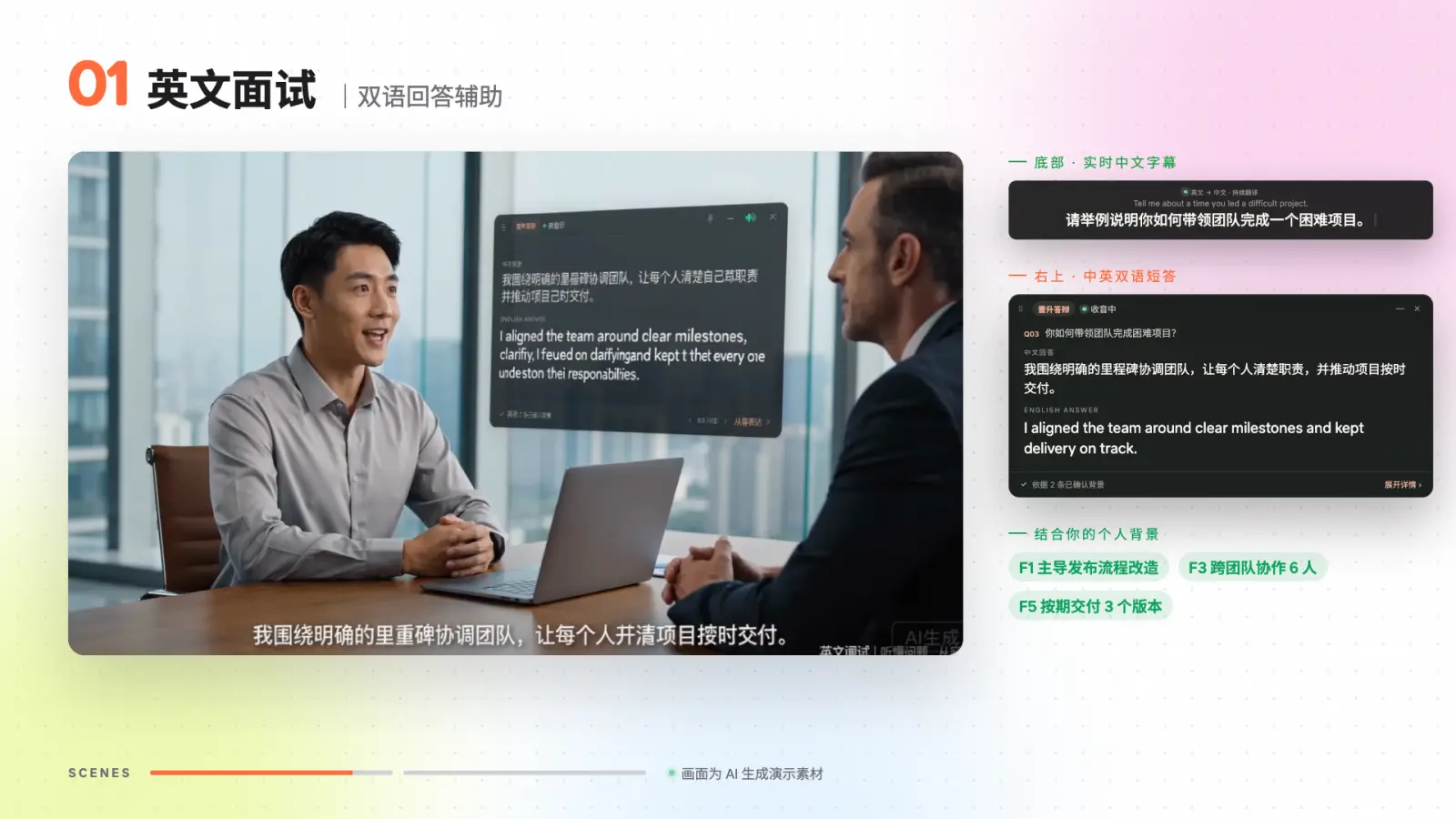
01
Interview
Chinese captions run along the bottom. A bilingual answer appears at the top right only when the other person asks a question, using the background you wrote.
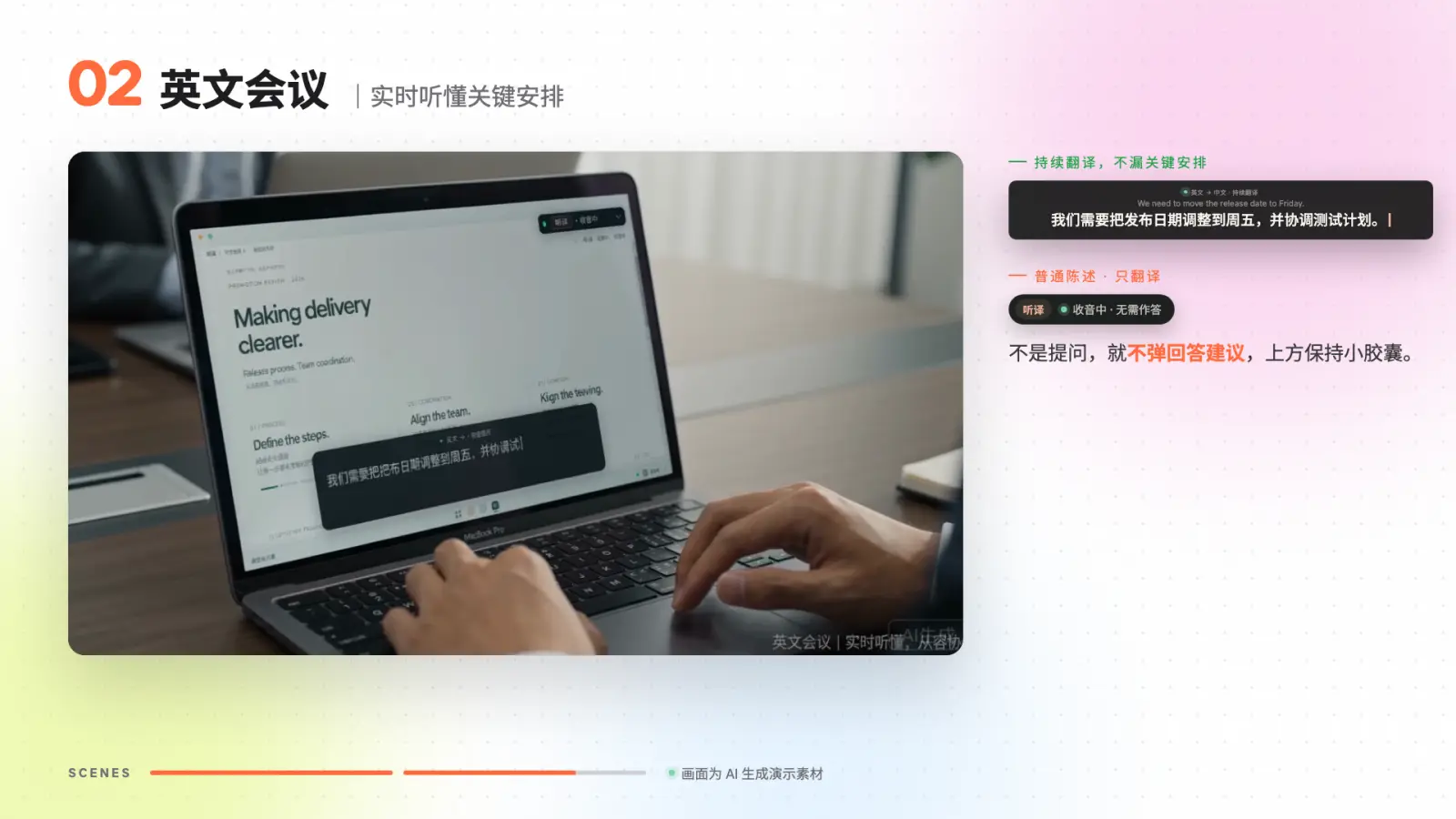
02
Meeting
A plain statement is translated. Nothing else appears.
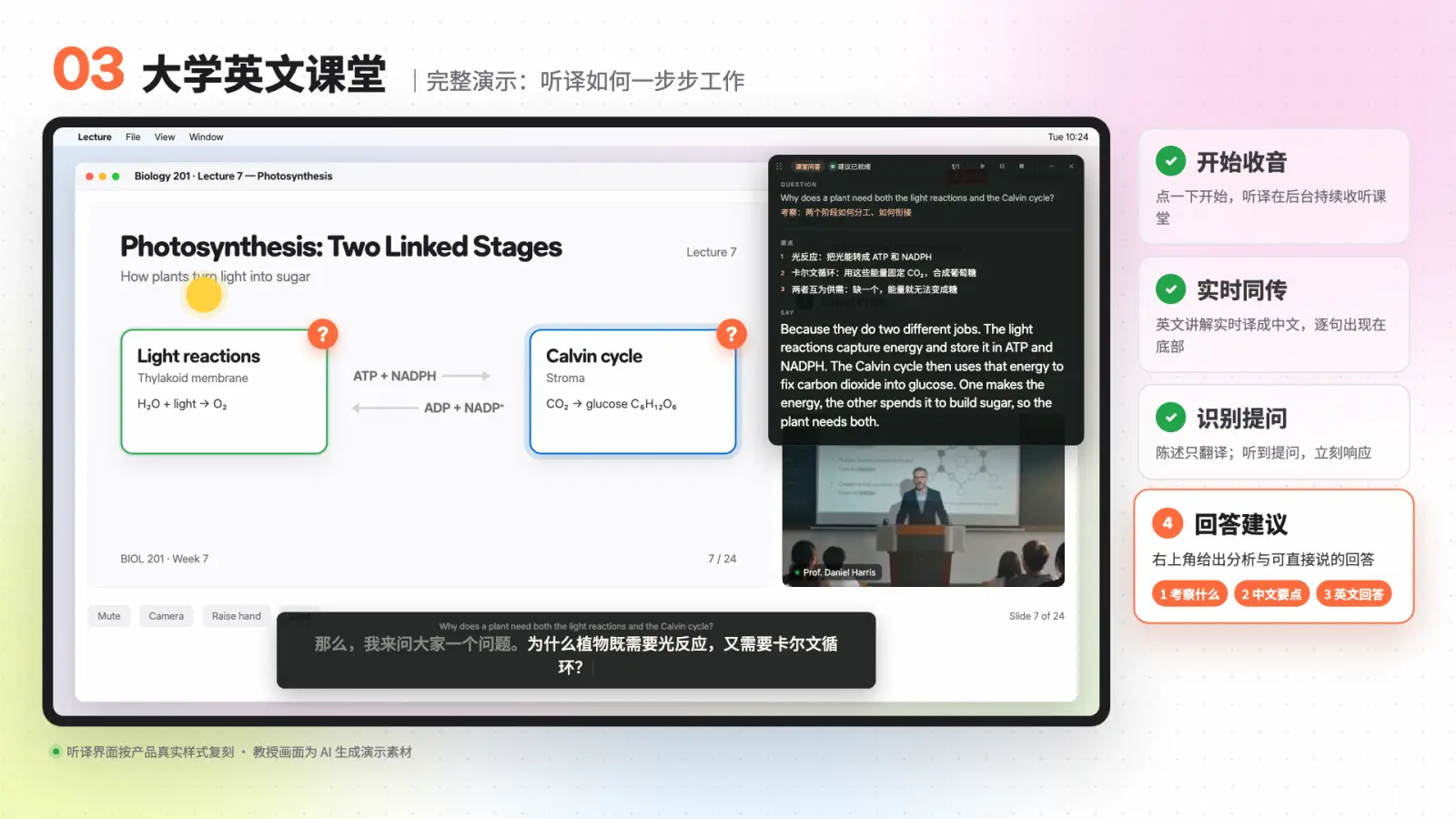
03
Lecture
Captions stay at the bottom. The lectern and the slides stay clear.
Six things it does
Live interpretation
Spoken English becomes Chinese captions, word by word.
Question detection
A suggestion is written only when someone asks a question.
Your background
Answers use the experience you entered. They do not invent facts.
A short reply
Chinese points first, then English you can say aloud.
Move, fold, hide
The panels do not take focus, and they do not cover what you are watching.
Keys stay local
The speech key and the Ark key remain on your computer.
Control it without the mouse
The panels never take focus, and the shortcuts work in any app.
- ⌘ ⇧ Space
- Open or fold the answer card
- ⌘ ⇧ H
- Hide or show both panels
- ⌘ ⇧ M
- I'm speaking: pause upload, resume after
- ⌘ ⇧ ,
- Open settings
English first
English works now. Japanese, Korean, French, and other languages come later.
- English
- Japanese
- Korean
- French
Questions
- What do I need?
- An Apple Silicon Mac, a Volcano Engine simultaneous interpretation key for captions, and an Ark key for answers. Enter them on the Keys page of the settings window. Only the last four characters are shown.
- What does it cost?
- Tingyi itself is free. Interpretation and the answer model are billed to your own account by actual use. Silence does not call a model.
- Is my own voice uploaded?
- Press "I'm speaking" or ⌘ ⇧ M to pause upload, then resume when you finish. This is a manual control, not voice recognition.
- Will it never cover the screen?
- No promise. Open captions and answers take some space. Drag, fold, or hide them, and their positions are remembered. With an extended display, put the slides on the other screen.
The beta
Bring your own speech key and Ark key. Keys stay on your computer. The installer does not include them.
This is an unsigned Apple Silicon beta. If macOS blocks it, allow it in Privacy & Security.
Tingyi started from one sentence and was built alongside TRAE.